The VirtualHere Client for Windows (version 5.9.8 or later) now supports RDP Isolation.
This means if you are connecting to Microsoft Remote Desktop Server in RD Session Host Mode with the Microsoft Remote Desktop Client, USB devices passed through will only be visible in one user session.
(If you are using Remote Desktop Server with VDI Isolation, also known as (RD Virtualization Host) you do not need to use the settings on this page at all. You can use the normal VirtualHere client and run that inside the session to pass in USB devices and be isolated).
The VirtualHere client now works in one of two modes.
- The normal (default) mode is where USB devices are passed into the Windows Operating System and attached to the USB Host Controller. The USB device is visible in all sessions in RD Session Host Mode.
- Isolation Mode - where USB devices are passed in and attached to the Remote Desktop Virtual USB Hub for that session.
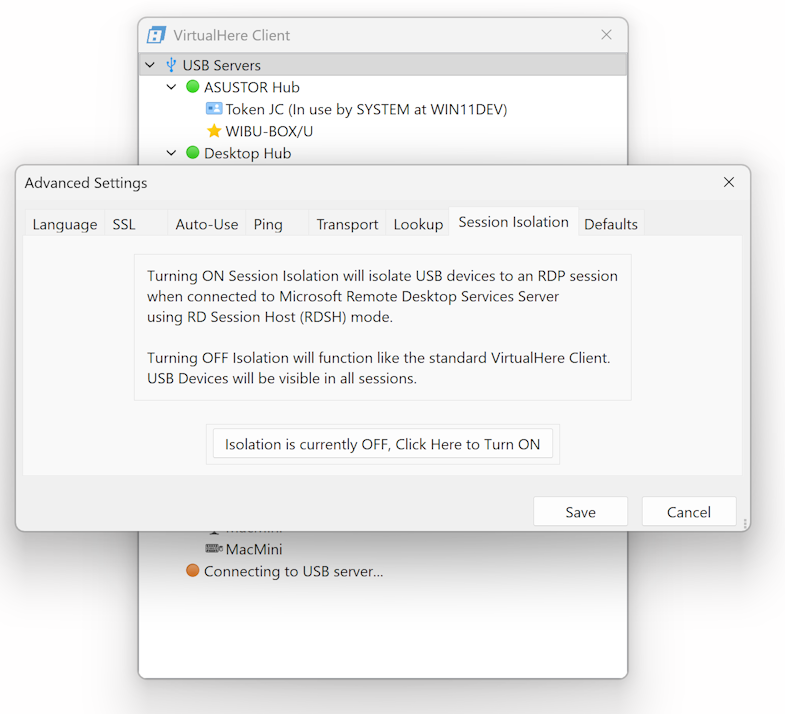
To switch to RDP Session Isolation Mode - in the VirtualHere client, right click USB Servers->Advanced Settings->Session Isolation Tab -> Click Turn ON. The client will restart in the mode and stay in this mode until you switch back using the same steps.
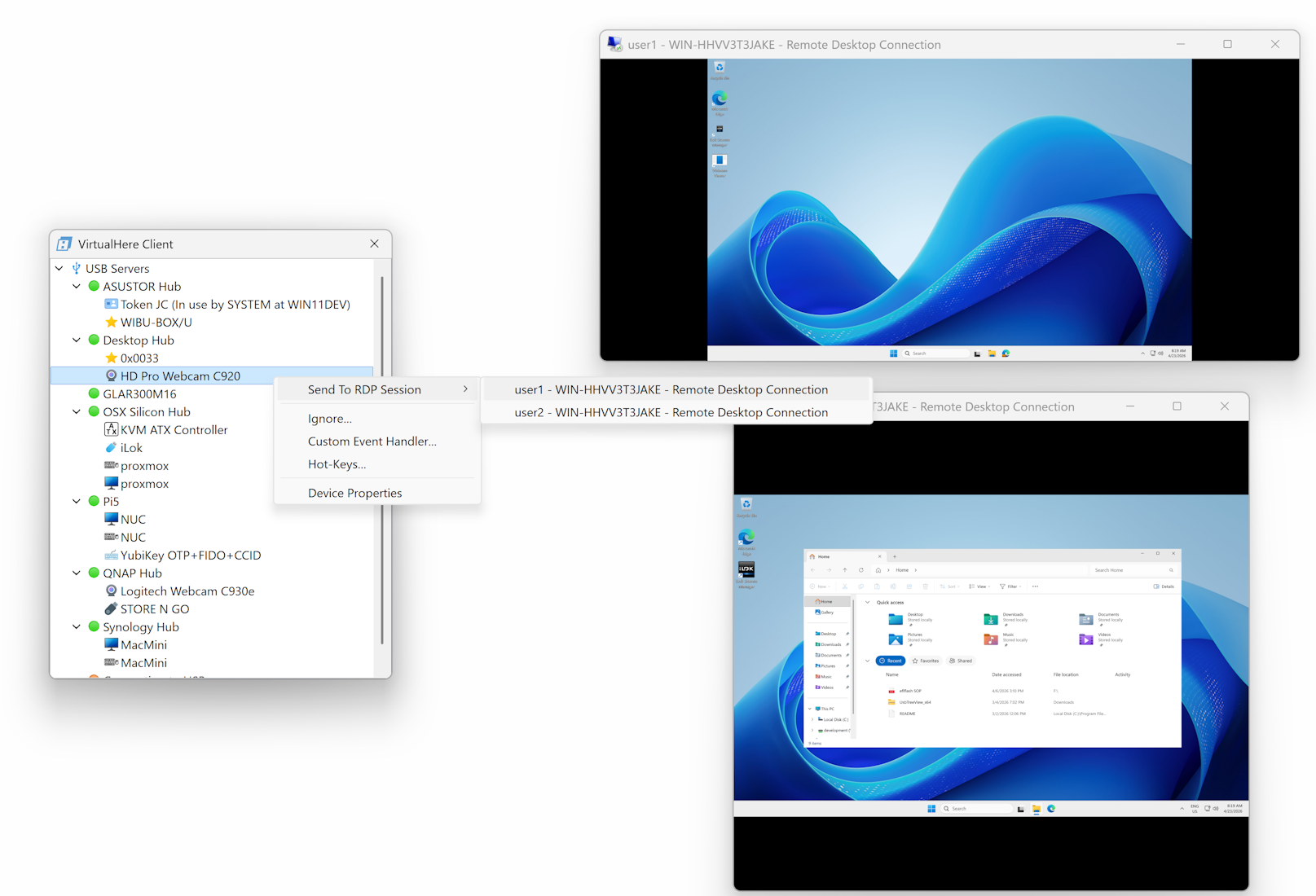
To send a USB device to an RDP session(s) start the Microsoft Remote Desktop Client and connect. In the VirtualHere client, right click on the USB device and select Send To-> and select the session listed. The target session does not need any VirtualHere software installed inside. In the example below, there are two concurrent RDP sessions. One for user1 and one for user2. The example below will send the Logitech Webcam C920 to the user1 session. The Logitech Webcam will be visible only to user1 on the Remote Desktop Server.
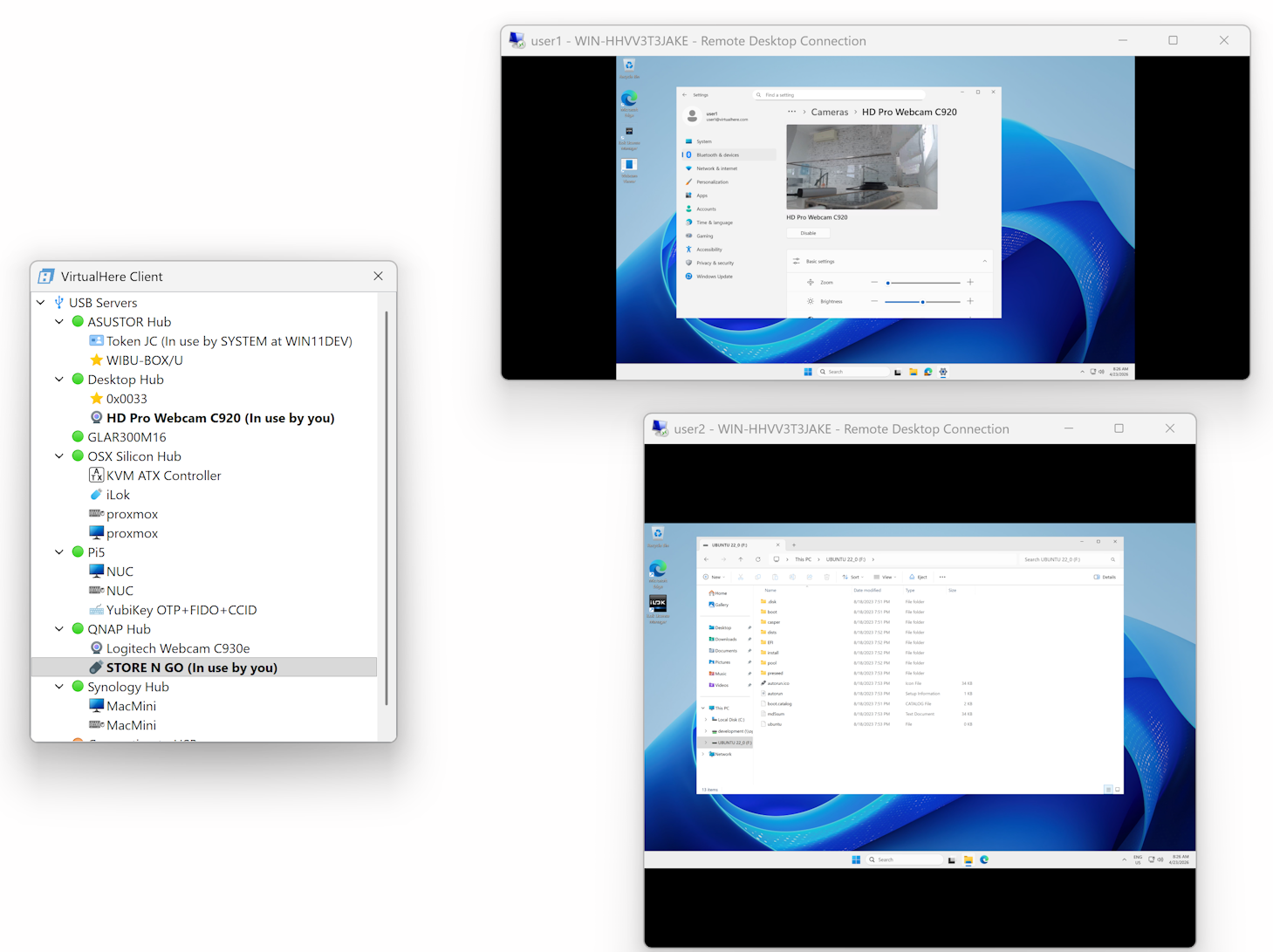
In the example below. I have sent the Logitech Camera C920 connected to a Linux machine running the VirtualHere Server to user1's RDP session and I've sent a STORE N GO USB Disk connected to a QNAP running VirtualHere Server to user2's RDP session. Neither of these sessions requires Virtualhere to be installed inside. The VirtualHere server needs to run where the USB device(s) are attached (can be on the same machine as the client) and the VirtualHere Client runs where the Microsoft Remote Desktop Client runs. VirtualHere uses the RemoteFX protocol to pass in USB devices so this must be turned OFF in the Windows Remote Desktop Services Client GPO settings so that the channel is clear for VirtualHere to use.