VirtualHere has created a fully standards compliant 4-Port USB 3 Hub that supports Per-Port-Power-Switching (PPPS). https://modularkvmip.com/product/usb-hub/
The PPPS functionality enables you to turn on or off power to each USB port individually. It is useful for :
- Resetting USB Dongles
- Power-cycling devices entirely (e.g while developing firmware)
- Saving bus power. e.g high power USB Disks can be turned off while not in use
- Driving simple relays etc
To switch power on or off to a USB port:
Using VirtualHere Client (GUI) on any OS
- Plug the hub into a device running VirtualHere Server
- In the VirtualHere Client Right click on the Server and select Show Hubs...
- Right click on the 4-Port VirtualHere Hub and select Hub Control and select Power Cycle Off/On etc
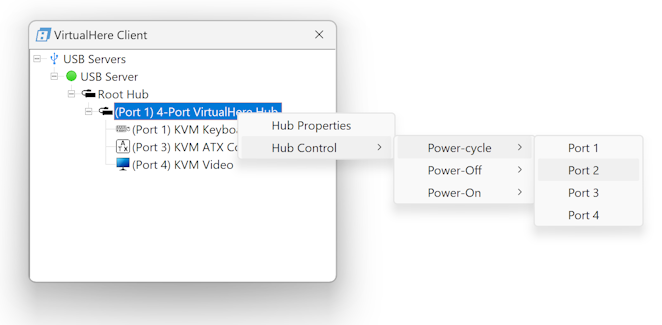
Using VirtualHere Client (Command Line Interface API) on any OS
To power cycle (power off/wait 3 sec/power on) find the address of the device first using the LIST command:
vhui64.exe -t LIST
VirtualHere Client IPC, below are the available devices:
(Value in brackets = address, * = Auto-Use)

NanoPiNEO3 (nanopineo3:7575)
   --> USB Light (nanopineo3.214)
Auto-Find currently on
Auto-Use All currently off
Reverse Lookup currently off
Reverse SSL Lookup currently off
VirtualHere Client not running as a service

vhui64.exe -t "CUSTOM EVENT,nanopineo3.214,power_cycle_port"
To power off (and on) the port separately:
vhui64.exe -t "CUSTOM EVENT,nanopineo3.214,port=off"

vhui64.exe -t "CUSTOM EVENT,nanopineo3.214,port=on"
Using the Windows Command Line without using the VirtualHere Client
Download https://www.virtualhere.com/sites/default/files/usbserver/vhfilterexe/vhfilter.exe
Install the filter (only needs to be done once) and reboot. Then use the DevicePath returned from the list-hubs command to switch on or off a port. Its preferable to switch off the USB 3 port as that will switch its companion as well. For example:
C:\Downloads>vhfilter.exe
vhfilter.exe turns on/off port power on a USB PPPS Hub
Copyright 2023- VirtualHere Pty. Ltd. https://www.virtualhere.com
Usage  : vhfilter.exe --install-filter | --uninstall-filter | --list-hubs | --switch-port [port] [off | on] [devicePath]
C:\Downloads>vhfilter.exe --install-filter
The VirtualHere USB Hub Filter driver has been sucessfully installed
C:\Downloads>vhfilter.exe --list-hubs
The following hubs are attached that support Per-Port-Power-Switching:
USB\VID_366B&PID_0004\MSFT203E55860BE2704C0F     has  4 ports   is USB 2        and attached to port  4 on USB\ROOT_HUB30\4&7178304&0&0 with companion port  3
USB\VID_366B&PID_0005\MSFT303E55860BE2704C0F     has  4 ports   is USB 3        and attached to port  3 on USB\ROOT_HUB30\7&30ff8dbc&0&0 with companion port  4
C:\Downloads>vhfilter --switch-port 4 off "USB\VID_366B&PID_0005\MSFT303E55860BE2704C0F"
Successfully turned port 4 off
Successfully turned companion port 4 off
C:\Downloads>vhfilter --switch-port 4 on "USB\VID_366B&PID_0005\MSFT303E55860BE2704C0F"
Successfully turned port 4 on
Successfully turned companion port 4 on
C:\Downloads>
Using uhubctl on MacOS/Linux command line
You can also use https://github.com/mvp/uhubctl to switch the USB port power when the Hub is connected to Linux / MacOS hosts
Port doesn't turn off power
Hi, I followed the instructions on this page for windows using vhfilter. After --install-filter and reboot --list-hubs gives me this list:
I know (from running --list-hubs with the hub disconnected), that the entries "USB\VID_366B&PID_0004\MSFT20D7F6DEA2D49B00D6" and "USB\VID_366B&PID_0005\MSFT30D7F6DEA2D49B00D6" are the VirtualHere hub.
Now when running --switch-port on the USB3 hub like this:
vhfilter --switch-port 1 off "USB\VID_366B&PID_0005\MSFT30D7F6DEA2D49B00D6"I get these messages:
When I run it on the USB2 hub like this:
vhfilter --switch-port 1 off "USB\VID_366B&PID_0004\MSFT20D7F6DEA2D49B00D6"I get different messages:
I have a device connected that creates a virtual COM port and has an LED to show, if it's powered.
In both cases neither does the COM port disappear from the device manager nor does the LED go off - so power stays on.
However, when I try to access the COM port it is not possible. Only when I run
vhfilter --switch-port 1 on "USB\VID_366B&PID_0004\MSFT20D7F6DEA2D49B00D6"I can access it again (I also hear the Windows sound for a device being connected).
I run this on the Windows cmd shell. It doesn't matter whether I run in user or admin mode.
Please help me getting this to work - I really need this power switching feature.
Thanks & kind regards,
Gerhard
Claude found solution
Claude said:
This helps. Errors go away and power can be turned on and off.
Btw.: I'm on Windows 11.
.
Interesting - i did not realize windows would block the request in that case. Thanks for letting me know.